
Convert
Make JPEG, PNG, WebP or AVIF copies. Converting to PNG keeps every pixel exactly.JPEG, PNG, WebP or AVIF copies.
PNG → WEBP−72%
Convert, compress and remove backgrounds for one image or a hundred. Everything is decoded, processed and saved right here in your browser.Convert and compress one image or a hundred, right here in your browser. Nothing is uploaded.
or drop files anywhere
 Before · JPEG · 8.4 MBAfter · WEBP · 2.7 MB
Each tool works on a single image or a whole batch, and they chain together in one run.
Make JPEG, PNG, WebP or AVIF copies. Converting to PNG keeps every pixel exactly.JPEG, PNG, WebP or AVIF copies.
PNG → WEBP−72%
Shrink JPEG, PNG, WebP and AVIF files while keeping each one’s type. PNG shrinks by using fewer colours, so graphics gain the most.Smaller files that keep their type.
JPEG → JPEG−69%

A transparent PNG at the original size, made by a model that runs on your own computer.A transparent PNG, on desktop browsers.
Any → PNGDesktop only
Pick a main tool, then add a step that fits with it. Every image goes through the whole chain once, in order, on your device.
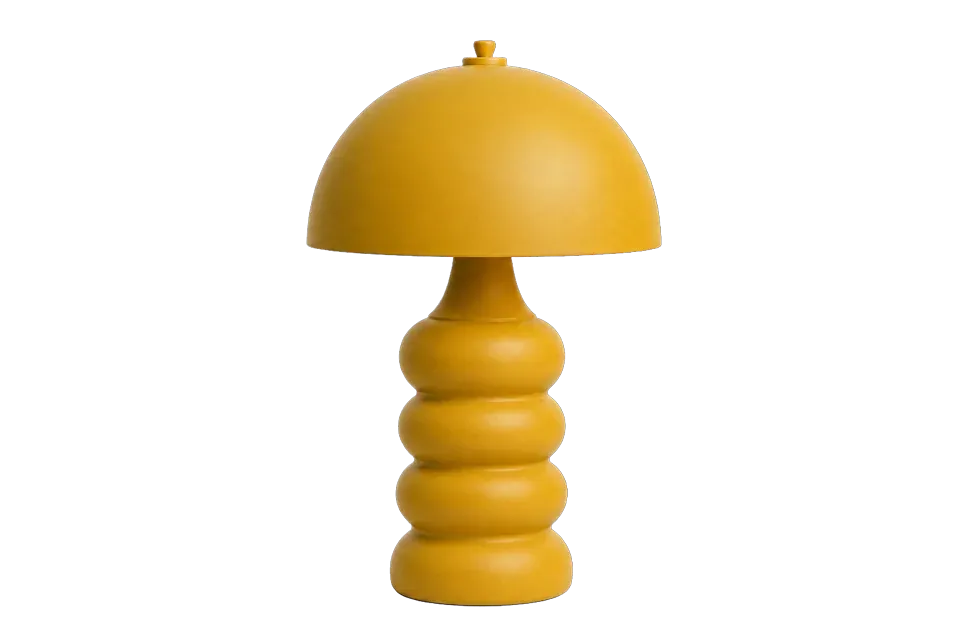
lamp.jpg · 2.1 MBlamp.png · 214 KB paper-set.webp · 612 KB
−69%13.3 MB lighter
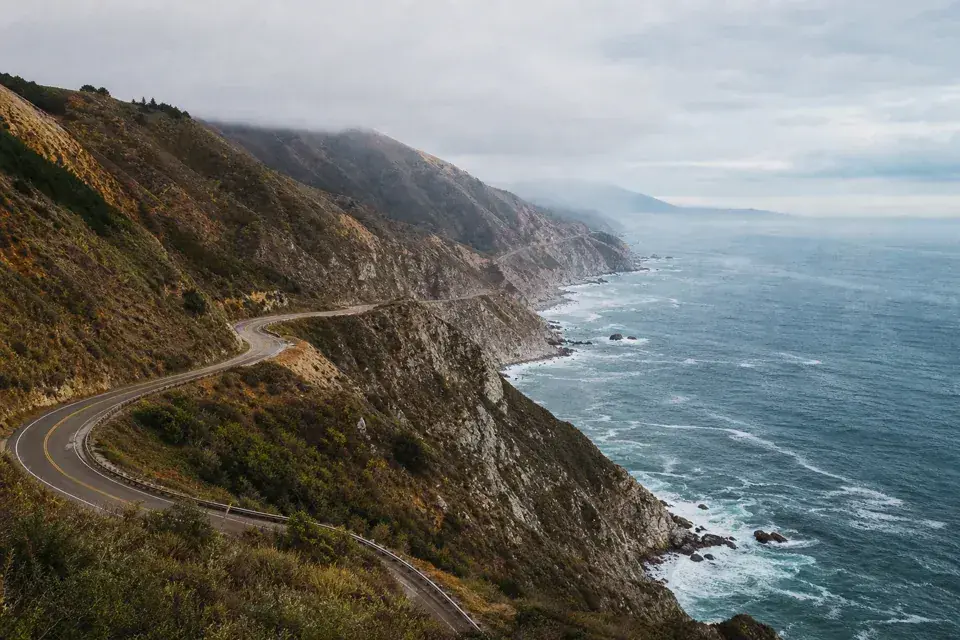
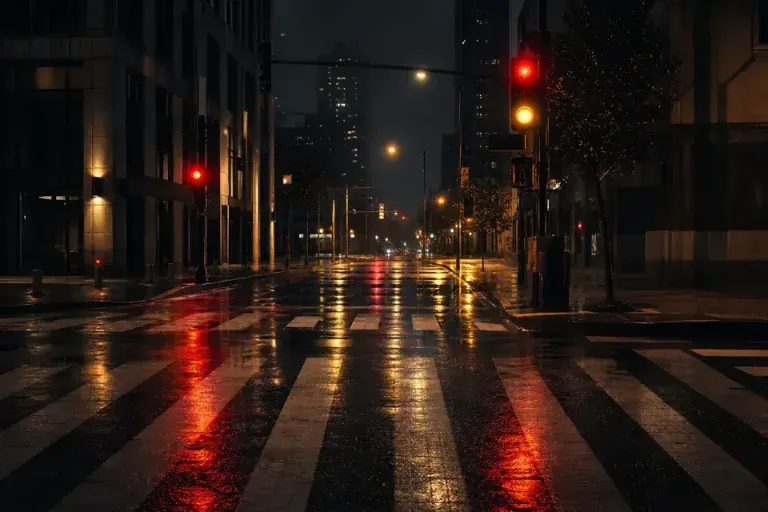
coast.webp−68%night-street.webp−69%paper-set.webp−75%lamp.webp+13%Compare every file before and after. If one comes out bigger, or can’t be read, Image Shed says so plainly and tells you why.
Decoding, editing and saving all happen in your browser. Newly encoded copies are saved without camera metadata such as location; a file returned unchanged keeps its own.New copies drop location and camera details. A file returned unchanged keeps its own.
Once the app and its codecs have loaded, it keeps working without a connection. Background removal needs its model downloaded once.Once it has loaded, it keeps working without a connection.
Finished images are kept in this browser’s Library until you clear it. Nothing is synced anywhere. Open your Library
| Format | Open | Save | Good for |
|---|---|---|---|
| JPEG | Yes | Yes | Photos. No transparency. |
| PNG | Yes | Yes | Screenshots, logos, anything needing exact pixels. |
| WEBP | Yes | Yes | Small files for the web, with transparency. |
| AVIF | Yes | Yes | The smallest files. Slower to make. |
| HEIC · HEIF | Varies | No | iPhone photos, where this device can decode them. |
| GIF · BMP · TIFF | Varies | No | Older files, when your browser can open them. |
No. Every image is decoded, edited and saved in your browser. Image Shed’s servers never receive them, and there is no account to send them to.
Yes, once the app and its codecs have loaded on this device. Background removal also needs its model downloaded once, and keeps it on this device afterwards.
Up to 100 in a batch by default, each up to 50 MB. You can raise the batch limit to 500 in Settings. Unusually large images may be declined when their pixel dimensions exceed what the browser can safely process.
Some images are already very efficient in their original format, like flat graphics saved as PNG. Converting one to another type can come out larger, and the results say so beside that file. Compress never hands back a bigger file: it keeps your original instead.
Yes. PNG is compressed by reducing the number of colours it uses, which keeps the file type and any transparency. Photographs may show banding, so WebP or AVIF can suit them better.
It is available on compatible desktop devices. The best-detail option needs a WebGPU-capable device; the quick, compatible option works more broadly, including without WebGPU. Converting and compressing work on phones and tablets too.
No sign-up, and nothing is uploaded.